
How to join & participate in Calaveras County Water District (CCWD) public meetings virtually?
This page shows easy, step‑by‑step instructions for joining CCWD public board and committee meetings in Microsoft Teams. It covers every common way to join (browser, desktop app, mobile, phone) and how to participate.
Quick overview - three simple ways to join
- Click the meeting link in the agenda or email. (Best for most people.)
- Use the Teams app (desktop or mobile) if you plan to join often.
- Call in by phone if you only have a telephone.
If you do not have a Teams account, you can still join most CCWD public meetings as a guest - no sign-up required.
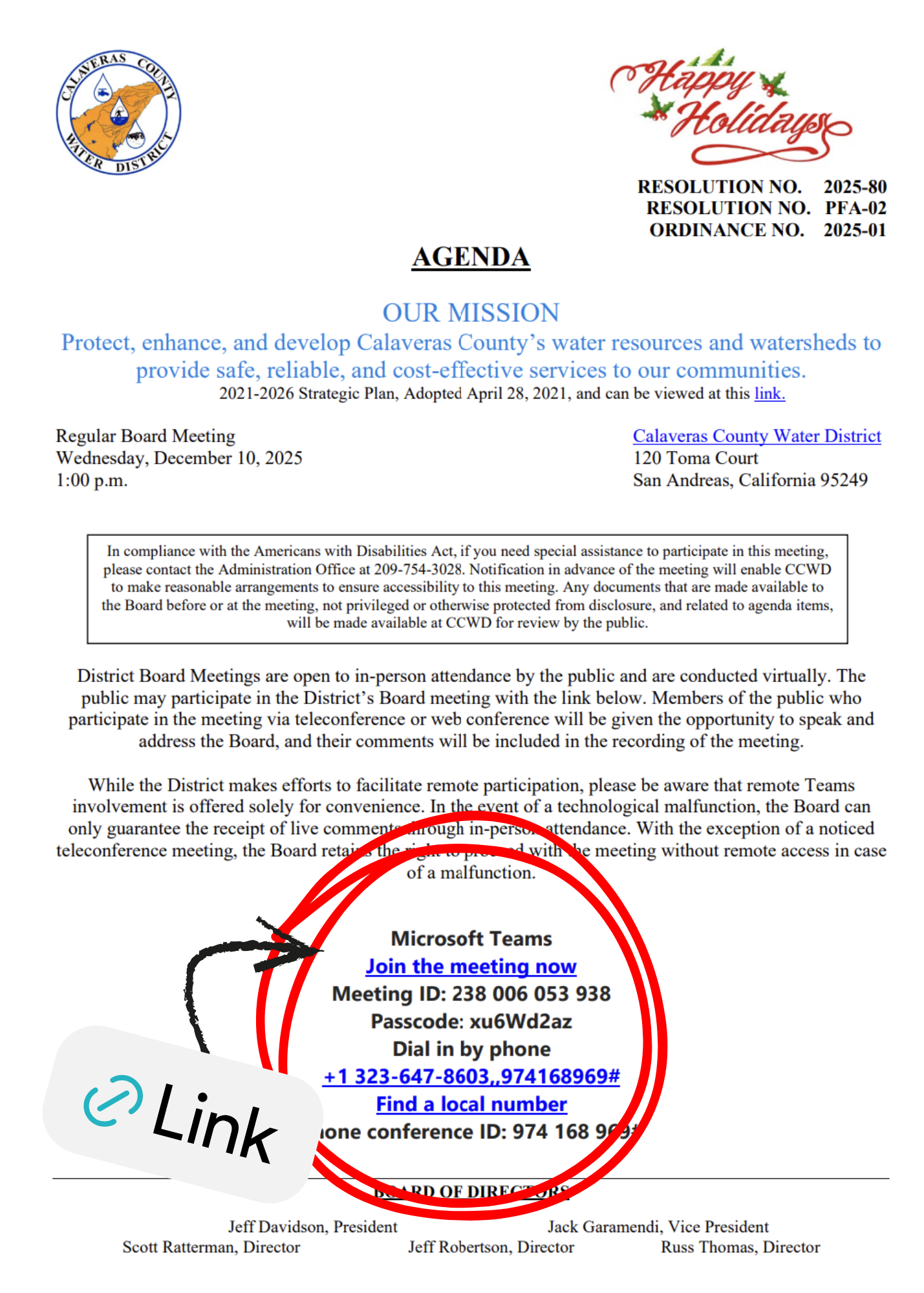
Before the meeting - what to do?
- Find the meeting link in the CCWD agenda on our website, or the email notice.
- If possible, test your device earlier: make sure your speakers/headphones and microphone work.
- If you will speak during public comment, have any notes ready and a line or two of identification (name, city) to say when asked.
1) Join by clicking the meeting link (recommended)
On a computer (Windows/Mac)
- Click the meeting link in the agenda or email.
- A web page will open offering two choices: Open your Teams app or Continue on this browser.
- If you already have Teams installed, choose Open your Teams app for the best experience.
- If you do not have Teams, choose Continue on this browser (supported in Chrome, Edge, and recent browsers). No download required.
- Enter your name if prompted (this is how meeting attendees will see you) and click Join now.
- Wait in the lobby if shown; the host will admit you.
Helpful tip: Use headphones to avoid echo and background noise.
2) Join using the Microsoft Teams app (desktop)
- If you plan to join often, download and install the Teams app from Microsoft (search “Get Microsoft Teams” or use your app store).
- Open the Teams app, sign in if you have an account (optional for guests), or click the meeting link and choose Open your Teams app.
- Choose audio and camera settings, then click Join now.
Why use the app? It gives more features and usually performs better than the browser.
3) Join on a smartphone or tablet (iPhone / Android)
- Download the Microsoft Teams app from the App Store (iPhone) or Google Play (Android).
- Tap the meeting link in the agenda or email. The link should open the Teams app and show a “Join” button.
- Tap Join, choose audio/video settings, then Join now.
Tip: If you don’t want to install the app, some mobile browsers also allow joining as a guest, but the app usually provides the best experience.
4) Join by phone (audio only)
- Check the meeting notice for a dial‑in phone number and conference ID.
- Dial the number, follow prompts, and enter the conference ID when requested.
- Use your phone keypad for meeting controls (e.g., mute/unmute, raise hand) — follow voice prompts or organizer instructions.
Joining without a Microsoft account (guest access)
- Click the meeting link and select Continue on this browser (or open the link in the Teams mobile app as a guest).
- You may be asked to enter your name and/or receive a one‑time code via email. Enter the code if requested.
- If the meeting uses a lobby, wait to be admitted by the host.
Note: Guests may see limited features compared to signed‑in attendees.
In the meeting - how to participate
Mute / Unmute: Click the microphone icon to mute while not speaking. Hosts may mute participants during the meeting.
Turn camera on/off: Click the camera icon to show or hide your video.
Raise hand: Use the “Raise hand” feature (three dots or participant controls, to indicate you want to speak; the host will call you when it’s your turn.
Public comment: Follow CCWD's public comment instructions. When called, unmute, state your name and city, and keep remarks within any stated time limit (e.g., 3 minutes).
Troubleshooting - common problems and quick fixes
I can’t join the meeting link:
- Try copying and pasting the full link into Chrome or Edge.
- If the browser blocks popups, allow popups for the page.
- If there’s a meeting code, try joining from the Teams app and enter the meeting ID.
Audio problems (can’t hear or can’t be heard):
- Check speaker/headphone volume.
- Make sure Teams is allowed to use microphone and speakers in your computer or phone settings.
- If echo or feedback occurs, use headphones.
Video problems:
- Close other apps that use the camera.
- Restart the Teams app or browser tab.
Placed in the lobby and not admitted:
- Wait - the host must admit guests from the lobby.
- If you are not admitted after 10–15 minutes, try rejoining or contact CCWD staff.
Accessibility & language options
- Teams supports live captions and closed captions during meetings - turn these on from the meeting options (three dots menu > Turn on live captions)
Meeting etiquette (be a respectful participant)
- Mute your microphone when not speaking.
- Identify yourself briefly before you comment (name, city).
- Keep comments concise and within any time limits the board sets.
- Avoid interrupting presenters or other speakers.
Quick checklist
- Find the meeting link or phone number on the CCWD website.
- Test mic and speakers with a quick call or test meeting.
- Use headphones if available.
- Join a few minutes early to fix any issues.
- When speaking, state your name and city.
Helpful video tutorials (recommended)
-
Join a Microsoft Teams meeting | Microsoft — official Microsoft quick guide.
https://www.youtube.com/watch?v=tfqcIjc3g94
-
How to join a Microsoft Teams meeting as a guest — guest account walkthrough.
https://www.youtube.com/watch?v=6pauAUOl8v4
-
How to join a Teams meeting on the web / browser — browser‑only instructions (no download needed).
https://www.youtube.com/watch?v=lNtUwUhJGCo